With the launch of PlayStation 5 (PS5), gamers can not only enjoy higher-quality game graphics and faster loading speeds, but also use more peripherals to enhance their gaming experience. Among other things, the use of webcams allows gamers to have more interaction and fun with live streaming, video calling and physical gaming. So, is it possible to use any webcam on the PS5?
Unfortunately, Sony doesn’t let you use any other webcams on PS5. This is at odds with Microsoft’s approach. You can plug almost any third-party webcam into an Xbox Series X or Xbox Series S for streaming, many of which perform better than the PlayStation 5 HD Camera and have the added bonus of working on a PC.
Here’s a detailed look at compatible webcams for the PS5, along with setup instructions and troubleshooting tips.
PS5 Compatible Webcam Models
Currently, the PS5 officially supports two main camera options:
- PlayStation Camera for PS4
- PlayStation 5 HD Camera
Let's examine each of these in more detail.
Read also: Choosing Cameras for Your ADT System
1. PlayStation Camera for PS4
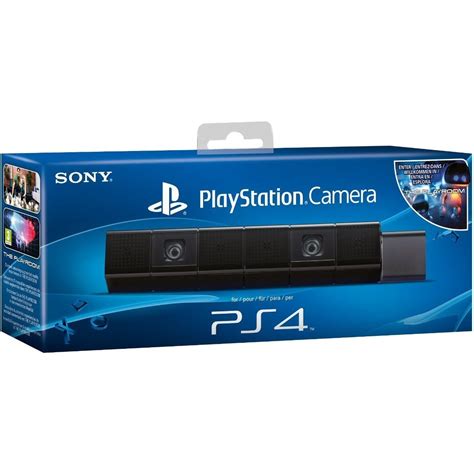
Despite being designed for PlayStation 4, PlayStation Camera is still compatible with PS5. However, in order to use this camera, players need an adapter, which can be obtained for free through Sony. This camera is mainly used for PlayStation VR and some physical games.
2. PlayStation 5 HD Camera
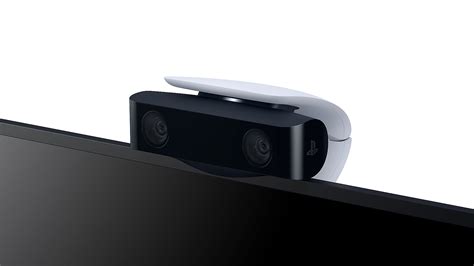
This is a camera designed specifically for the PS5 with 1080p HD resolution and built-in dual wide-angle lenses to provide clearer images and a wider field of view. It supports background removal and can be used for live streaming and video calls.
Its compact design allows it to be securely positioned above or below TVs - where you can fine-tune the angle to suit your set-up.
You do get significantly better image quality on Sony’s new PS5 camera, as the PlayStation 5 version is capable of 1080p capture while the PS4’s version tops out at 800p. However, the PS4 camera was at least used in some games like Alien Isolation, all of the Just Dance titles, and Tearaway Unfolded. No games support the PS5 HD Camera right now.
Background removal tools: Take center stage in your productions using the PlayStation®5 console’s built-in background removal tools. With the HD camera, you can add yourself to your gameplay videos while broadcasting in picture-in-picture mode, with the ability to crop the background or lose it completely with a green screen.
Read also: EseeCloud Security Solutions
Frustratingly, Sony doesn’t let you use any other webcams on PS5. This is at odds with Microsoft’s approach. You can plug almost any third-party webcam into an Xbox Series X or Xbox Series S for streaming, many of which perform better than the PlayStation 5 HD Camera and have the added bonus of working on a PC.
3. Third-party cameras
Currently, the PS5 does not support most third-party webcams. Sony officially recommends using PlayStation Camera or PlayStation 5 HD Camera to ensure the best compatibility and performance.
How to Set Up and Use a Webcam on PS5
Here are the steps to set up and use a compatible webcam on your PS5:
- Connect the webcam: First, connect PlayStation Camera or PlayStation 5 HD Camera to the USB port of PS5. If you are using PlayStation Camera for PS4, remember to use an adapter to connect it to PS5.
- Setting up the camera: Go to the PS5 settings menu, select "Accessories", and then select "Camera". Here, players can adjust the position, brightness and contrast of the camera to get the best image quality.
Using your HD camera (CFI-ZEY series) or PlayStation Camera (CUH-ZEY series) in live stream:
- Press the create button and select Broadcast.
- Select the streaming service you'd like to broadcast with.
- Enter your broadcast information. When you want to include video from your camera or audio from your voice chat, select BroadcastOptions and customize how you broadcast.
- When you're all set, select Go Live, and your broadcast starts. The broadcast card appears in the control center.
PS5 Camera for Streaming | Should You Buy It?
Read also: Choosing Home Assistant Cameras
Functions and Applications of PS5 Webcam
The PS5 webcam can be used for various functions and applications:
- Live Broadcast: With PS5 webcam, gamers can easily broadcast live games and interact with viewers in real time, and the background removal function of PlayStation 5 HD Camera makes the live broadcast image more professional.
- Video Calling: Although there is no official video calling app for the PS5, the camera's hardware support paves the way for future software updates or third-party apps.
- Physical Gaming: With PlayStation Camera for PS4, gamers can experience some games that support somatosensory operations, such as Just Dance. Although there are not many of these games on PS5, the addition of the camera still enriches the gameplay.
Troubleshooting: PS5 Webcam Not Recognized
If you encounter issues with your PS5 webcam not being recognized, here are some troubleshooting steps:
- Check the connection: Make sure the webcam is properly connected to the USB port of PS5. If using PlayStation Camera for PS4, make sure the adapter is connected correctly.
- Update system software: Check and update the system software of PS5. Sometimes, camera recognition problems may be caused by a low version of the system software.
- Reboot the device: Try to restart PS5 and connect the camera again after restarting.
- Check the camera settings: Go to the Settings menu to make sure the camera is recognized by the system and check if the camera settings are correct.
- Contact customer service: If the above methods still cannot solve the problem, you can contact PlayStation Customer Service for assistance. Providing a detailed description of the problem and device information will help customer service quickly locate and resolve the issue.
How to troubleshoot an unclear image from HD Camera: Clean your HD Camera lenses using a clean, dry microfiber cloth.
Shopping for PlayStation Accessories
Get your HD camera Buy direct from PlayStationShop for a range of official PS5 console accessories direct from PlayStation, and enjoy free standard delivery with every order, plus many more benefits of getting your consoles, games and accessories straight from the source.
More reasons to shop with PlayStation:
- Get early and exclusive access to new products
- Free standard delivery on all orders
- Free returns
- Launch day delivery on pre-orders
HD camera not compatible with PlayStation®VR.
However, there is one PS5 accessory that I wholeheartedly recommend picking up right now: the DualSense Charging Station. The DualSense Charging Station doesn't occupy any of the PS5’s precious USB ports either as it plugs directly into a power outlet. This means after you've finished playing, you simply pop your pad into the dock and it’ll be ready to go when you return. Better still, if you own a second DualSense controller, you can hot-swap between pads when required. As you play on your freshly charged pad, your other controller will be charging, so you’ll technically never be caught short again when it comes to the DualSense's middling battery life.
tags: #compatible #cameras #for #ps5