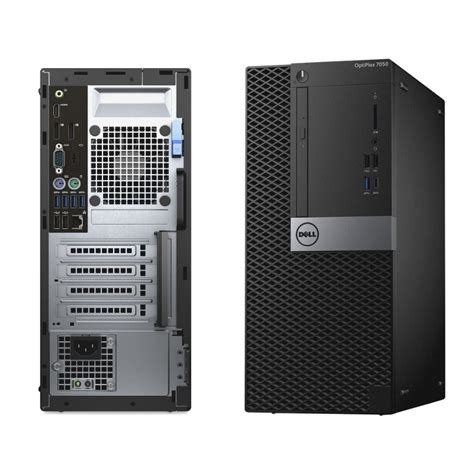
The release of Windows 11 brought with it a wave of questions regarding hardware compatibility, especially for systems like the Dell OptiPlex 7050. This article delves into the specifics of running Windows 11 on the OptiPlex 7050, covering essential aspects such as processor requirements, UEFI settings, TPM 2.0, and more.
Processor Requirements
Microsoft has included a list of supported processors for Windows 11, which primarily includes CPUs from Q4 2017 and newer. For Intel, this list essentially includes 8th Generation Intel Processors and newer. You can search for more details about your processor in Google by using the keywords Intel ark followed by your processor model, in this case i5-7500T (OptiPlex 7050).
These system requirements are a bit more elevated than I would have expected. I personally would expect Windows 11 to work on 6th (Skylake) and 7th (Kabylake) Generation Intel Processors which are from around 2016. Moreover i5-6xxx, i7-6xxx, i5-7xxx and i7-7xxx have a marginal difference in system performance and technologies available compared to i3-xxxx. These processors also meet all of Windows 11 other system requirements.
The PC Check reports the OptiPlex 7040 (6th Generation Intel Processor) and OptiPlex 7050 (7th Generation Intel Processor) systems to be incompatible. 5th (Broadwell) Generation and Earlier Generation Intel Processors will not satisfy the additional Security requirements (TPM 2.0 requirement and a Secure Boot with 2020 GRUB2 Security Exploit Patch).
The Windows Processor Requirements page lists only 5th Generation and newer processors for Windows 10 Version 21H1 although Windows 10 21H1 works with 2nd, 3rd and 4th Intel Generation Processors… This reinforces my suspicion that Windows 11 might still work with 6th Generation and 7th Generation Processors however we will need to wait and see when the Windows 11 Insider Preview ISO has been released.
Read also: Hardware Compatibility for vSphere 8
UEFI and Secure Boot
To give Windows 11 a stronger baseline security looks like a Unified Extensive Firmware Interface (UEFI) with Secure Boot is mandatory. A UEFI Boot allows more than 4 partitions on the Boot Drive and therefore Windows 11 will use multiple recovery partitions reducing the likelihood of Boot Issues which plagued earlier Windows versions.
An updated Secure Boot requirement will greatly remove the likelihood of preboot malware from crippling a Windows installation. Windows 11 will therefore likely only work on Dell systems manufactured in 2016 hardware or later. Secure Boot was released in 2012 however there was a GRUB2 Security Exploit in 2020 that rendered Secure Boot essentially useless.
OEMs released UEFI BIOS Updates for 6th Generation Intel Processors (2016 hardware or newer) and later to address this Security Exploit. Older systems manufactured before this time (end of life systems) were not patched and therefore be unlikely to pass the Windows 11 elevated Secure Boot requirement system requirement.
Also check to see the Version/Date. If it is after May 2020 you will likely have Secure Boot which addresses the GRUB2 Security Exploit. If it is before this time, check your OEMs drivers and downloads page to see if your system has a newer UEFI BIOS Update and Update to the latest version and then recheck the Version/Date. If it is still older than May 2020, you will likely be below the Secure Boot requirements for Windows 11.
You can check to see if Secure Boot is enabled in the UEFI BIOS Setup. Power up your Dell and press [F2] to enter the UEFI BIOS Setup. Check to see if your BIOS Mode is UEFI and if Secure Boot is On.
Read also: Decoding Dream Windows Biblically
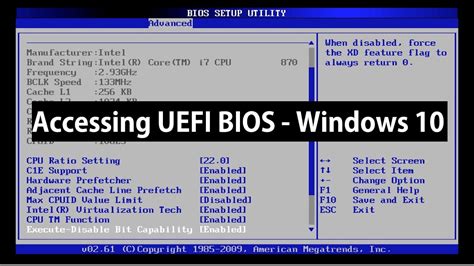
Example of UEFI BIOS Setup
TPM 2.0 Requirement
Microsoft have stated that your computer requires a Trusted Platform Module (TPM) of Version 2.0 or later. A TPM is a component soldered onto the systems motherboard, that securely generates a cryptographic key.
The cryptographic key is used as a security feature currently used for Bitlocker Device Encryption, Windows Hello, Measured Boot and Credential Guard. The TPM was designed with the potential for much more but wasn't really realised as Windows 10 supported older hardware without this technology.
Dell have stated that all 6th Generation Intel Systems have a TPM 2.0 included. Note the TPM Version 2.0 may have to be enabled in the UEFI BIOS setup for 6th Generation and 7th Generation Intel Processors as these systems have factory defaults that set the TPM to version 1.2 by default. TPM Version 1.2 (a software TPM) was the standard when these systems were sold but with Windows 11, Version 20 (a hardware TPM) will have to be used.
For a Dell system you will need to press [F2] during power up to enter the UEFI BIOS setup. Go to the Security Tab. Highlight the TPM 2.0 subtab. Ensure TPM 2.0, Attestation, Key Storage, SHA 256 are checked and at the bottom that Enabled is checked.
Read also: 1151 to 1200 Cooler Adapters
Likely Microsoft will link the TPM to the Microsoft Store for the purposes of software license enforcement. Users will be able to associate Windows Devices (with unique TPMs) to their Microsoft Account.
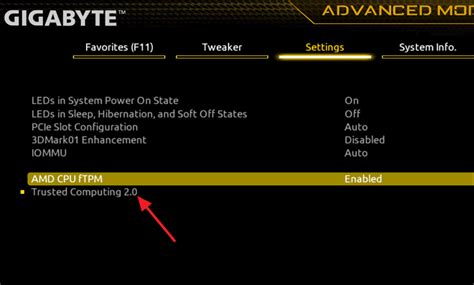
Example of TPM 2.0 settings in UEFI BIOS
Other System Requirements
- RAM: At least 4 GB of RAM is required again indicating that Windows 11 is likely 64 Bit only.
- Storage: Microsoft have stated that the minimum disk size is 64 GB, personally I think they should have upped it to 120 GB or 250 GB and made a SSD mandatory as the Windows user experience with Windows 10 has been very poor on a HDD and Microsoft should avoid letting this issue carry over to Windows 11. However Microsoft have mentioned that some elevated feature based system requirements such as DirectStorage will require a NVMe SSD.
- Graphics Card: The graphics card has to be compatible with DirectX 12 or later with WDDM 2.0 driver. You can check the DirectX Version by selecting the GPU tab in the Task Manager. If the DirectX Version is 12 or later your system should be compatible. Select Yes and then select the Display Tab.
The Processor and the UEFI + Secure Boot requirement pretty much mean there will only be a 64 Bit version of Windows 11. Microsoft no longer want to waste resources developing both a 64 Bit and 32 Bit version when the userbase for 32 Bit Windows is very low and no OEMs have actually shipped hardware with 32 Bit drivers in the last 5 years.
Driver Compatibility
One of the challenges users face is the availability of updated device drivers. Dell is not providing updated device drivers, for my OptiPlex 7040, that are clearly marked compatible with Windows 11. Yesterday I crossed my fingers and installed an updated graphics driver, from Dell. It took some time to install itself completely, creating some lag there while the disc drive was flashing away, but then settled down to nice fast operation. I realize that Dell has little to gain, from people like me who are using Windows 11, before buying a new PC.
My problem is this. All along, my OptiPlex 7040 has had UEFI BIOS, secure boot, and TPM 2.0 enabled, in Windows 10. Since then, I also enabled virtualization based security (memory integrity), system management mode security mitigation, and trusted execution mode, which are not strictly required for Windows 11. All of these options already exist, in the OptiPlex 7040 and 7050.
In fact, both the 6th generation Intel Core processors of the OptiPlex 7040, and the 7th generation of the OptiPlex 7050, do work very well with Windows 11. I've had it running on my Intel Core i7 6700 for well over a month now, with no issues.
Dell Optiplex 7050 starting up to Windows 11
Potential Reasons for Elevated Requirements
Dropping 32 Bit support and the elevated hardware requirements is likely the main rationale for a new Windows "Version" 11 i.e. not just another Windows 10 Version YYHX. Microsoft have also purchased GitHub, which is an online (mainly open source) software repository and are following in Linux footsteps with command line base software installations.
These system requirements are a bit more elevated than I would have expected. Microsoft have stated that the minimum disk size is 64 GB, personally I think they should have upped it to 120 GB or 250 GB and made a SSD mandatory as the Windows user experience with Windows 10 has been very poor on a HDD and Microsoft should avoid letting this issue carry over to Windows 11.