Integrating your doorbell with Google Home offers exceptional benefits, streamlining how you manage your home’s security and making life a little easier. Choosing doorbells that work with Google Home offers some exceptional benefits.
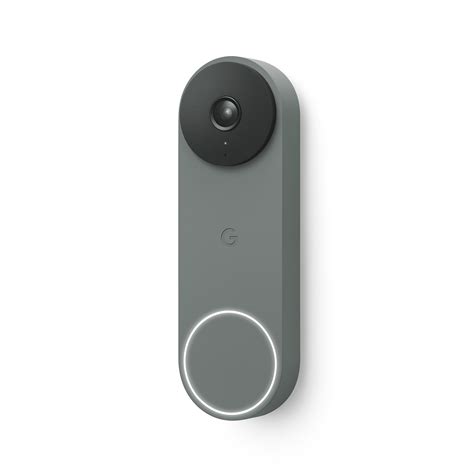
Let's dive into how you can connect these powerful tools and reap the benefits of a smarter, safer home.
Benefits of Integrating a Doorbell Camera with Google Home
Integrating your Ring doorbell with Google Nest Home brings several advantages:
- Centralized control: Manage your home security through voice commands or the Google Home app, giving you control from anywhere in your house or on the go.
- Real-time alerts: Receive alerts on your Google Home speakers and on your phone when someone is at your door, so you never miss a visitor.
- Convenient features: Operate the doorbell hands-free when integrated with Google Home and control it like other smart devices.
- Unified Interface: You have a unified interface to control everything, integrating with different Google Home devices and services.
Steps To Add Ring Doorbell To Google Home [How to add Ring Doorbell to Google Home?] #HowTL
Compatible Doorbells with Google Home
Several doorbell cameras are compatible with Google Home, offering a range of features and functionalities. Here are a few notable options:
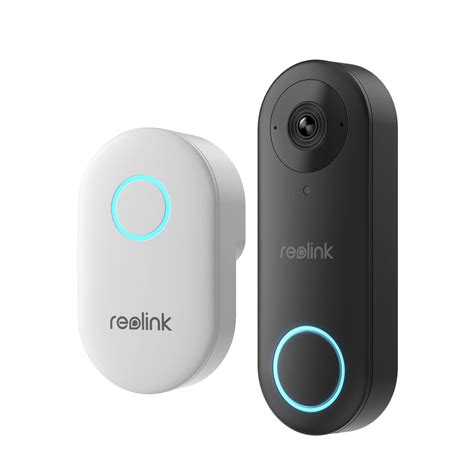
- Reolink Doorbells: Reolink offers several doorbells that work with Google Home. The Reolink PoE doorbell is a reliable and advanced option, recording videos in 2K+ (5MP) resolution. It offers exceptional clarity and intricate details. The Reolink Wi-Fi doorbell works on your home Wi-Fi network and offers compatibility with Google Assistant and Alexa. Reolink Battery Doorbell is an excellent doorbell you can use with Google Home. It is easy to install and works even in power outages.
- ecobee Smart Doorbell Camera: Now compatible with Google Home, ecobee's Smart Doorbell Camera brings voice control, live feeds, and seamless integration to your smart home. If you already use Google Home, the experience is even smoother.
- Ring Video Doorbell: Fortunately, Ring devices are compatible with Google Home, allowing you to integrate them easily.
Factors to Consider When Buying a Google Home Compatible Doorbell
We shared the factors you need to consider while buying doorbells that work with Google Home:
Read also: Backup Camera Not Working? (Taurus)
- Compatibility: First, ensure whether the doorbell is compatible with Google Home or Google Assistant.
- Power Options: You can go with a PoE, DC-powered, or Battery-powered doorbell. For PoE, you need to have proper Ethernet wiring, but it is a reliable option. DC-powered doorbells are Wi-Fi doorbells that require power through a DC adapter connected to a nearby AC outlet.
- Video Quality: The video quality of the doorbell should be optimal. Aim for at least a 2K resolution for rich details and clear videos. It should also have a brilliant night vision to capture clear videos at night. Also, check the audio quality of the camera.
- Smart Detection: The most important feature is smart detection. The camera should detect movement instantly and be able to distinguish between a person, vehicle, and parcel.
- Voice Control: It should work on voice commands and offer hand-free control. You should be able to see the live preview from any location.
- Durability: The doorbell camera should be durable enough.
How to Connect Your Doorbell to Google Home
Once installed and functioning, you can link it with your Google Home by following a few straightforward steps:
- Open the Google Home app on your smartphone or tablet.
- Tap the + icon > Set up device > Works with Google.
- Type “Ring” in the search bar, and select it from the list of available services.
- You’ll be prompted to enter your Ring account details.
- After logging in, authorize Google Home to access your Ring devices.
For Reolink doorbells, the process involves:
- Open the Reolink app and add the camera to the application.
- Log into your account.
- Open the Google Home App.
- Go to the Devices tab and tap +Add.
- Search for Reolink Smart Home.
- Tap it and log into your account.
- Go to the Devices page and tap Add Device.
- You will see the doorbell option here.
Addressing Common Concerns
Some users have expressed concerns about the integration of newer cameras with the Google Home ecosystem. Issues include:
- App Confusion: The use of the NEST product name for new cameras that don't work with the NEST app can be confusing.
- Inconsistent Functionality: Being redirected from the GOOGLE HOME app to the NEST app to view recorded footage.
- Limited Recording: The new doorbell when wired does NOT give you 24/7 recording.
- Slow Wake-Up: The new doorbell is very slow at waking up.
- Browser Viewing: You can not view any of the new cams from your computer's browser.
- Clip Editing: On the GOOGLE HOME app you can not trim up the start/end of a clip that you want to save.
- Sharing Clips: On the GOOGLE HOME app you can not simply send a LINK to someone to view a clip.
These concerns highlight the importance of researching and understanding the specific capabilities and limitations of each device before making a purchase.
Enhancing Your Smart Home Security
Whether you're just discovering ecobee or already using our Smart Thermostat with Google Home, adding the Smart Doorbell Camera and unlocking smart security features makes your home smarter and more connected. With one app, you can monitor your doorbell, thermostat, sensors, and smart lock.
Read also: UFO Sightings on Camera
Read also: Detailed Review of Arccos Golf