Seeing "[Compatibility Mode]" at the top of an Excel workbook can limit your analysis. This mode restricts you from using Excel’s newer, more powerful features. In this article, you’ll learn what Compatibility Mode is and how to get rid of it. Also, you will learn how you can use AI to not only guide the process but also verify your data's integrity.
What is Compatibility Mode in Excel?
Compatibility Mode in Excel facilitates working with older file formats and helps with checking features in the current version that are not supported by earlier Excel versions. Excel, like anything else, is subject to evolving, changing, and updating as it gets topped up with new features.
In short, Compatibility Mode is Excel's way of ensuring you can open and work with old files without breaking them. Specifically, it activates when you open a workbook saved in the older ".xls" format, which was the standard for Excel 97 through Excel 2003. When Excel enters this mode, it temporarily turns off any features that didn't exist in those older versions.
That’s not necessarily the case with everyone as they may be using older Excel versions with the .xls file extension. While your later version would be all accepting of .xls files, others' younger Excel would be unaware of certain features of .xlsx files but you can give the new features some rest for usage in older versions - through Compatibility Mode.
Compatibility Mode disables aspects of incompatible features that older versions would try to perform or calculate and would otherwise malfunction. This "safe mode" approach was crucial for a smooth transition as Microsoft updated Excel over the years. However, sticking with it means you’re voluntarily limiting what you can accomplish. You might not realize how much you're missing until you know what to look for.
Read also: Solve Word Compatibility Issues
When are you likely to see Compatibility Mode?
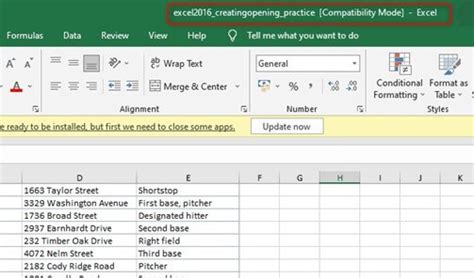
If you open an old file or receive an xls file and your Excel is version 2007 or later, you will see the Compatibility Mode in the title bar. You will also see this appear in the title bar if you’ve converted the file format to an older one.
Why Should You Exit Compatibility Mode?
When Excel enters Compatibility Mode, it disables several modern features. Here are some key limitations:
- Powerful New Functions: Forget about game-changers like XLOOKUP, SORT, FILTER, UNIQUE, or IFS.
- Modern Charting and Visuals: Newer chart types like Waterfall, Treemap, and Sunburst charts won't be available.
- Enhanced PivotTables: Features like Slicers and Timelines, which provide interactive, visual filters for your PivotTables, are completely off-limits in Compatibility Mode.
- Expanded Limits: Older .xls files are restricted to just 65,536 rows and 256 columns. If you're trying to perform any modern data analysis, you’ll quickly hit a wall.
While Compatibility Mode works nicely to tone down the file against alien features, there is a possibility that disabling that feature is causing a major lack of functionality.
Compatibility Issues
The number one reason a feature or function may not work in older versions as we'd like it to is that it hadn't existed in the previous versions. There are several new functions that are introduced with each Excel version and over time, many data styling features have made themselves available with the later updates in Excel.
E.g. if a newer function is recalculated in an earlier version of Excel, it will return a #NAME? error since the version will not recognize the function and will deem the function name incorrect.
Read also: 1151 to 1200 Cooler Adapters
However, compatibility issues aren’t just linear like that; there may be version incompatibility among xlsx files too. E.g. the UNICODE function will not work in Excel 2010 although, after 2003, xlsx files have replaced xls. But the function was introduced in 2013 so it won't work in any version before that, xlsx or not.
That’s the bad news. The good news is that Excel’s Compatibility Checker can synopsize the compatibility issues, categorized into major and minor features.
- Minor issues are more superficial and concern mostly with appearance and minor functionality.
- Major issues may cause significant loss in functionality or even data loss.
Once presented by the Compatibility Checker you may choose to address these issues.
How to Get Out of Compatibility Mode
Fortunately, converting an old Excel file and exiting Compatibility Mode is straightforward. Leaving the Compatibility Mode involves changing the file type to xlsx Excel workbook. Therefore, any of the Save As routes will do the trick where you change the file type to xlsx (and not just the file extension, mind that!).
Below are a couple of ways to save the file as the xlsx file type and exit Compatibility Mode.
Read also: Sagittarius Relationships
Using the Convert Option
- Open your File: Double-click to open the .xls file that is in Compatibility Mode.
- Go to File Info: Click on the File tab in the top-left corner of the ribbon.
- Click the Convert Button: You will see a prominent Convert button near the top of the 'Info' pane. An icon of two arrows might accompany it, with a summary explaining that this action will upgrade the workbook to the latest file format.
- Confirm the Conversion: A dialog box will appear, letting you know that the workbook will be converted. It will also warn you to close and reopen the workbook to access the new features.
Using the Save As Option
- Go to File tab > Save As.
- Select Excel Workbook (*.xlsx) from the file types in the drop list and hit the Save
This will create a separate file in the xlsx format, Compatibility Mode gone!
How to Check Compatibility Manually
The compatibility of the file can be checked manually and it is done using the Compatibility Checker. The Compatibility Checker in Excel creates a summary of the features that will not be available or function properly if the current workbook is saved in earlier file formats or Excel versions.
Among other things, the Compatibility Checker enlists a description of the incompatible feature, the sheet location, and versions that the file will not be compatible with.
Let’s advance on how to access the Compatibility Checker and what we can find through it.
- From the File tab, click on Info from the side panel.
- In the Info window, click on the Check for Issues button and select Check Compatibility from the list.
The window will jump back to the worksheet and open the Compatibility Checker. Now you can see all the features that are likely to malfunction in older versions of Excel.
The summary is split into Significant loss of functionality and Minor loss of fidelity. Each feature is described with the nature, location, occurrences in the workbook and the Excel versions it will clash with. The Fix link may appear with some features and clicking on this link will fix the compatibility issue and remove the feature from the Compatibility Checker.
The Find link will lead you to the sheet and select the cells containing the feature. But this will close the Compatibility Checker every time and you will have to reopen it from the Info window. You can lodge the summary on another worksheet to avoid this hassle and access the ranges from there by clicking on the Copy to New Sheet command.
Potential Issues After Conversion
Is it possible for the conversion to cause problems? Yes, but it’s very rare and usually limited to very old, complex files. This tool is the Compatibility Checker. It runs automatically when you use the 'Convert' or 'Save As' command on a .xls file.
A typical warning it might give is about formatting: "Minor loss of fidelity." This usually means some subtle cell shading or border style might look slightly different, but the data itself is fine.
A more significant warning could relate to old macro code or formulas that use functions no longer supported. The checker will list every potential issue it finds, cell by cell, so you can review them.
How to Turn Off Compatibility Mode in Excel Fix Compatibility Issues
Verifying Data Integrity After Conversion
While the conversion steps are simple, you might still feel some uncertainty. Did my data get corrupted? How do I use these new features effectively?
The biggest fear during any file conversion is accidental data corruption. Manually spot-checking thousands of rows is slow and unreliable. Before you convert in Excel, you can export your original .xls file as a CSV. Then, after converting to .xlsx, you have two source files representing your "before" and "after" state.
By uploading both files to an AI data platform, you can get instant, side-by-side dashboards summarizing each one. A quick visual comparison of key metrics-total sales, average costs, customer counts-is all it takes. If the totals, trends, and charts on both dashboards look identical, you can have immediate confidence that your data survived the conversion perfectly intact.
Using AI to Enhance Your Data
Removing Compatibility Mode is just the first step. The real goal is to get better insights from your data. After upgrading your file, don't stop there.
Instead of digging through technical documentation, you can use a conversational AI like ChatGPT or Claude for immediate help. "I converted my file and now have access to XLOOKUP.
The AI will analyze the entire dataset and automatically build a polished, interactive dashboard with relevant charts, KPIs, and summaries. This dashboard is often 80% of what you need to present to a manager or team, created with zero manual effort.
Additional Information
The file extension in your workbook's name should be .xlsx if you're using an Excel version post-Excel 2003.
Office automatically uses compatibility mode to open Word, Excel, and PowerPoint documents created in earlier versions of these apps. Compatibility mode makes sure users don't see new or improved features in Office while working with a document. This way, people using earlier versions of Office can fully edit the document.
Word, Excel, and PowerPoint use compatibility mode to open binary Office documents created in Office 2003 or earlier versions.
If you use Group Policy, you can use the Set default compatibility mode on file creation policy setting to manage the default compatibility mode Word uses to create new documents. You might need this setting if you use add-ins or macros that rely on layout functions from Word 2007 or Word 2010.
When you enable this policy setting, you can specify which versions of Word new documents are compatible with.
Full functionality mode: Keeps all new features enabled. If you choose the Word 2003 option, Word creates new Open XML files with Word 2007 and later features disabled. This configuration makes sure Word 2003 users can edit the files. If you select Full functionality mode, Word 2007 and Word 2010 users can open and edit Word 2019, Word 2016, and Word 2013 documents.
You can download the Group Policy Administrative Templates files (ADMX/ADML) for Office from the Microsoft Download Center.
Microsoft Office 2016 and Office 2019 will reach end of support on October 14, 2025. After this date, Microsoft will no longer provide security patches, bug fixes, or technical support for this version.
tags: #xls #compatibility #mode