Encountering the "App Not Installed" error on your Android device can be incredibly frustrating. This often occurs when trying to install an APK file from a source outside the Google Play Store, such as a modified app, a beta version of software, or an app not available in your region. This guide provides a comprehensive approach to resolving this issue, focusing on compatibility problems.
Common Causes and Solutions
1. App Incompatibility
The error message often indicates incompatibility between the app and your device. This could be due to several reasons:
- 32-bit vs. 64-bit Architecture: The APK might be designed for a different processor architecture than your phone supports. Many newer phones are 64-bit, and older apps might only be available in 32-bit versions.
- Target SDK Version: The app may be targeting an older or newer SDK (Software Development Kit) version than your device supports.
2. Installation from Unknown Sources
Ensure that you have enabled the installation of apps from unknown sources in your device settings. This is a prerequisite for installing any APK file outside of the Google Play Store.
To enable this setting:
- Go to Settings.
- Navigate to Apps & notifications (or a similar option, depending on your Android version).
- Select Advanced, then Special app access.
- Choose Install unknown apps.
- Select the app you'll use to install the APK (e.g., your file manager) and toggle the Allow from this source option.
3. SDK Version Issues
If you are a developer, you may need to adjust the targetSdkVersion in your app's manifest file. Setting it to 23 or higher means you need to handle runtime permissions.
Read also: Detailed Review of Arccos Golf
When targeting newer Android versions, remember that you need to handle runtime permissions. This means that the app should request permissions (like access to storage or camera) when they are actually needed, rather than all at once during installation.
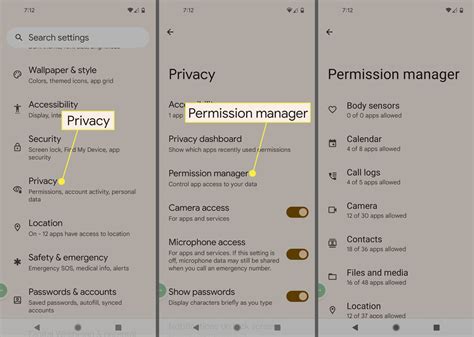
4. Storage Permissions
Even if you've added the necessary permissions in the manifest file, you might still encounter issues with reading and writing to external storage, especially on Android 14 and later. Ensure your code correctly requests and handles these permissions at runtime.
5. File Integrity
Make sure your APK file is not corrupted. Try downloading the file again from a reliable source. Sometimes, incomplete or corrupted downloads can cause installation failures.
How to Fix App Not Installed Error Android APK | Very Easy Method to Fix App Not Installed Error NEW
6. Debugging Steps for Developers
If you are a developer and facing this issue, consider the following steps:
- ZipAlign the APK: Ensure that the APK file is properly ZipAligned. This optimizes the app for Android and can resolve installation issues.
- Sign the Package: Make sure the APK is correctly signed with your private key. Unsigned or improperly signed packages will fail to install.
I had the same problem with android 14 andthe app could not be installed after changing to sdk 26 the problem about installing is solved but I Can not read and write the external storage . I added the permission in manifest but it doesn't work .
Read also: Apps for Oura Ring Users
7. Outdated Browser
Ensure you are using an up-to-date browser when downloading the APK file. An outdated browser can sometimes lead to corrupted downloads.
Summary of Troubleshooting Steps
Here's a summary table of the common issues and their solutions:
| Issue | Solution |
|---|---|
| App Incompatibility | Check if the APK is compatible with your device's architecture (32-bit vs. 64-bit) and Android version. |
| Installation from Unknown Sources Disabled | Enable "Install unknown apps" in your device settings for the app you're using to install the APK. |
| Incorrect targetSdkVersion | Set the targetSdkVersion to 23+ in the manifest file and handle runtime permissions. |
| Storage Permission Issues | Ensure your app requests and handles storage permissions correctly at runtime. |
| Corrupted APK File | Download the APK file again from a reliable source. |
| Improperly Zipalign or Signed APK | ZipAlign and sign the APK correctly using your private key. |
| Outdated Browser | Use an up-to-date browser. |
By systematically addressing these potential issues, you can often resolve the "App Not Installed" error and successfully install your desired application.
Read also: What is S3-Compatible Storage?