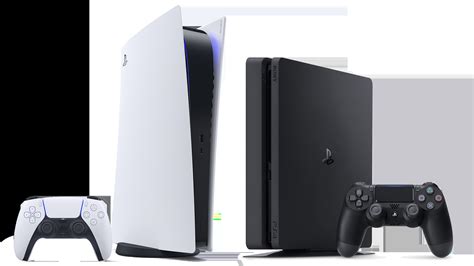
The arrival of the PlayStation 5 marked a turning point in the gaming world, offering an enhanced gaming experience thanks to its advanced graphics capabilities and innovative features. If you own a PlayStation 5 (PS5) console and have a PlayStation 4 (PS4) controller, you might be wondering if you can use it to play games. Many who already own one or more DualShock 4 controllers for PS4 wonder if they can use them on their new console. The answer is yes, but with some constraints.
Let's clarify the compatibility between PS4 controllers (DualShock 4) and the PS5 console.
Compatibility Overview
Here's a breakdown of the compatibility:
- The PS4 controller (DualShock 4) is fully compatible with PS4 games played on the PS5.
- The PS4 controller is not compatible with PS5 games.
- The PS5 controller (DualSense) is not compatible with the PS4.
- The PS5 controller (DualSense) is backwards compatible with PS4 games played on a PS5 console.
To play PS5 games, or the PS5 version of the game, you must use the PS5’s DualSense controller. This is because PS5 games are designed to take advantage of the advanced features of the DualSense, such as haptic feedback and adaptive triggers, which are not present on the PS4 controller. This limitation is due to Sony's desire to fully exploit the capabilities of the new DualSense controller, specifically designed for the PS5. Sony has put this restriction on the console and the games itself.
You invite your friends over for a playthrough of Overcooked! All You Can Eat, only to realize you have a PS5® console while your friends came equipped with PS4® controllers. You might be wondering: can PS4 controllers work on a PS5? Sure can, but PS4 controllers may lack some of the standard PS5 controller features (like haptic feedback or adaptive triggers), and it comes with a pretty big caveat-they can only be used to play older PS4 titles on the newer console. For PS5 games, you’ll need to use a compatible PS5 controller.
Read also: Controller Gaming on Android
If you try to use a PS4 controller to play a PS5 game on your PlayStation® 5, you'll get a warning message that says, "PS5 games can't be played using the DUALSHOCK 4".
Backward Compatibility
The PlayStation®5 console is backward compatible with the overwhelming majority of PlayStation®4 games. In addition, some PS4 games may exhibit errors or unexpected behavior when played on PS5 consoles.
PlayStation VR games are included among the thousands of PS4 games that are playable on PS5 consoles. Playing PS VR games on a PS5 console requires a PS VR headset, PlayStation®Camera for PS4* and a PlayStation®Camera adaptor (no purchase required). For the best PS VR experience on PS5 we recommend using a DUALSHOCK®4 wireless controller. Selected games may require PlayStation®Move motion controllers or be compatible with the PlayStation®VR aim controller. The new HD camera for PS5 is not compatible with PS VR. The PS VR headset, PS Camera, DUALSHOCK 4 wireless controller, PS Move controllers and PS VR aim controller are all sold separately from PS5. *Model CUH-ZEY1 or CUH-ZEY2
While the majority of PS4 games are playable on PS5 consoles, below is a list of PS4 games that are playable on PS4 only. You may need to download an update.
Cyberpunk 2077 PS4 vs PS5 - Patch 2.12 - Graphics Comparison - Framerate - 4K - Loading Times 60FPS
How to Connect a PS4 Controller to a PS5
PS4 controllers, also known as DualShock® 4 wireless controllers, can connect to your PlayStation in two ways: via a Bluetooth connection or a wired connection.
Read also: Using DualSense with PC
Connecting via Bluetooth
- Turn on your PS5 console.
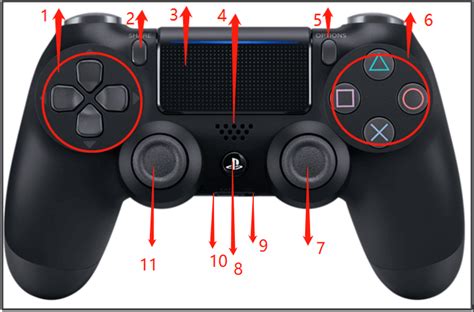
- On your wireless controller, press and hold the PS Button and the Share button simultaneously until the light bar flashes.
- On your PS5, head to the Settings menu.
- Select Accessories > Bluetooth Accessories.
- Your PS4 controller should appear in the list of available devices. Select it to pair it with your PS5.
The downside of a Bluetooth connection is that it adds some latency in executing commands. Therefore, use this alternative solution only if the first method does not work. For a Bluetooth connection, ensure that your controller is in pairing mode (flashing light on the controller).
Connecting via USB Cable
Connecting to your PlayStation® 5 with a USB cable is even easier:
- Connect your PS4 controller to the PS5 using a compatible USB cable and one of the USB ports located at the front or back of the console
- The PS5 will recognize the controller and pair it automatically.
For a wired connection, check that the USB cable is not defective, and test the connection with another cable if necessary.
Whether you go wired or wireless, your console can connect up to four controllers at a time. This gives you one more reason to take your gaming session online.
Additional Information
- The PlayStation 5 allows up to four controllers to be connected simultaneously.
- Yes, if you are playing a backward-compatible PS4 game on the PS5, you can connect both a DualShock 4 controller and a DualSense controller for local multiplayer.
Troubleshooting
If you’re having issues with your controller, often the first troubleshooting step is to reset your controller. Resetting won’t reconfigure your controller or affect pairing and profile settings.
Read also: Detailed Review of Arccos Golf
- Turn off your PS5 console.
- Locate the small reset button on the back of the controller.
- Use a pin or similar tool (not included) to press the reset button. This will not reconfigure the controller or affect pairing and profile settings.
- Connect the controller to your PlayStation®5 console using the USB cable that came with your controller, and press the PS button.
If you’ve tried resetting your controller and are still having issues, please visit the PlayStation Repairs diagnostic tool.
tags: #ps4 #controller #not #compatible #with #ps5