Random Access Memory (RAM) is a crucial component in any computer system, responsible for providing temporary storage for data that the CPU (Central Processing Unit) can quickly access. As a key component of modern computing devices, RAM plays an important role in CPU data cache. RAM (Memory) issues can significantly impact a computer’s performance. When a RAM module fails, the stability of the entire system will be seriously affected, manifested as a variety of performance impairments.
Timely identification of memory failures and taking correct countermeasures are essential to ensure work efficiency and hardware life. RAM failures can cause serious problems; your computer might reboot by itself, certain applications may not run properly, or it can result in sluggish behavior. These failures arise when the RAM is not compatible with the motherboard or the processor. Other reasons include age, manufacturing defects, and wear and tear.
Common Signs of RAM Issues
Computer memory failures often present a variety of symptoms, among which the blue screen of death (BSoD) is the most iconic warning signal. The Blue Screen of Death (BSOD) is one of the main symptoms of potential RAM malfunction. However, even with a single Blue Screen event, you should consider a thorough evaluation of your RAM's health. This serious system error is often accompanied by a sudden shutdown, which not only interrupts the current workflow, but also may cause permanent loss of unsaved data.
Frequent freezes or pseudo-deaths during system operation are also worthy of vigilance, especially after excluding the possibility of software conflicts. Such symptoms often point to memory compatibility issues or physical damage. Inadequate system performance includes slow response time, sluggish performance, and overall low-quality output. Your computer’s low performance is related to RAM issues.
Here's a breakdown of common RAM-related issues:
Read also: 1151 to 1200 Cooler Adapters
- BSOD (Blue Screen of Death): The computer screen turns blue and stops responding to your commands.
- Random Shutdowns or Freezes: If your computer shuts down automatically or applications freeze at random.
- Application Installation Problems: New programs might not be installed properly. One reason this happens is because the application itself is corrupted. If the application is licensed, then the problem lies with your RAM.
- Poor System Performance: This includes slow response time, sluggish performance, and overall low-quality output.
- Random Restarts: Malfunctioning RAM can lead to random restarts.
- Video card not loading: Symptoms in this case could include no display, error messages, and random crashes.
Before starting the testing process, it's essential to identify the symptoms that could indicate possible RAM issues. If you are experiencing any of these symptoms, it's worth checking your RAM modules for errors.
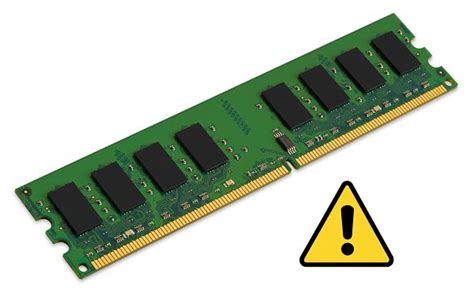
Troubleshooting Steps
Some of these issues can be fixed at home. Many RAM issues, like reseating or replacing sticks, can be handled by users with some technical knowledge. Here are some steps to diagnose and fix RAM problems:
- Basic Checks: In the face of suspected memory failures, we recommend that users first perform basic checks: completely power off and reinstall the memory module.
- Make sure all your power cords are plugged in. Did you accidentally bump one of the wires or cables inside your computer while you were installing your modules? A loose hard drive cable can prevent your computer from booting up properly.
- Ensure your system is updated.
- Clean your computer regularly.
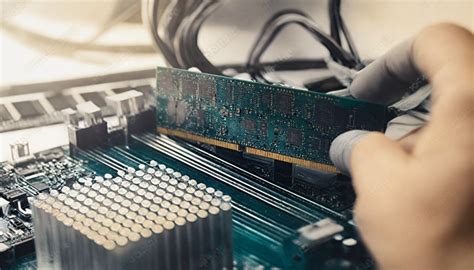
- Reseat the RAM: Incorrect RAM placement can result in the system failing to detect the memory module. Make sure the notches in your module are lined up with the keys in the slot, then press down using 20 to 30 pounds of pressure. While this may seem like a lot of force to use on a small module, it's necessary to properly "seat" the module.
- Run Memory Diagnostic Tools: The initial step is to run diagnostic tools specifically designed to test RAM functionality. Run memory diagnostic tests to check for errors.
Here are some tools you can use:
- Windows Memory Diagnostic: If you're using Windows, you already have a built-in tool called Windows Memory Diagnostic. You can find it by searching in your Start menu. Windows users can use the built-in “Windows Memory Diagnostic” tool to perform memory tests. A built-in Windows tool (Memory Diagnostic Tool) checks the memory sectors in the RAM and reports if there are any bad sectors.
- MemTest86: For more complex fault situations, deep scanning with professional diagnostic tools such as MemTest86 is a necessary step. Memtest86 is a free software program specifically designed to diagnose RAM issues. Unlike other diagnostic tools that run within the operating system, Memtest86 boots up from a USB drive or CD/DVD. The tool can perform stress tests for more than 72 hours and accurately identify potential error addresses.
- MemTest86+: This is an alternative to MemTest86.
- CPU-Z: This is a tool that provides detailed information about your system's hardware, including RAM.
- Built-in OS Tools: Operating systems often come with built-in diagnostic tools.
Read also: Sagittarius Relationships
Detailed Steps for Testing RAM
Follow these steps to thoroughly test your RAM modules for errors:
- Update Drivers and BIOS: Before starting the testing process, ensure that your Chipset Driver, Windows, and BIOS are up to date. If your computer is older, it may need a BIOS (Basic Input Output System) update in order to work with today's technology. Don't worry - updating your BIOS isn't as difficult as it sounds.
- Clear CMOS: Overclocking your RAM or CPU can sometimes lead to instability and memory errors. To rule out any issues related to overclocking, you should clear your computer's CMOS (Complementary Metal-Oxide-Semiconductor) settings. Open your computer case and locate the CMOS battery. Wait for 5-10 minutes before reinserting the battery. Close the computer case, plug it back into the wall socket, and power on your computer. Note: Some motherboards have a dedicated CMOS reset button or jumper. Consult your motherboard's manual for specific instructions on how to clear the CMOS using these methods.
- Configure Motherboard for Testing: Before testing your RAM modules, refer to your motherboard manual for the recommended 1 and 2 stick configurations for your particular motherboard. This will ensure that your RAM is set up correctly for the testing process.
- Windows Memory Diagnostic: Windows Memory Diagnostic is a built-in tool for Windows users that can test your computer's RAM for errors. Your computer will restart and begin the memory test. This process might take several minutes to complete. Please note that Windows Memory Diagnostic is not conclusive. If it shows errors on the RAM modules you will want to move on to Step 6 for further testing.
- MemTest86: MemTest86 is a popular third-party tool that can be used to test RAM modules on both Windows, Linux and macOS systems. Restart your computer and boot from the USB drive. MemTest86 will start automatically, and the memory test will begin. Once the test is complete, the results will be displayed on the screen.
- Test Individual Modules: If your system has multiple RAM modules and you suspect one or more of them may be faulty, you can test them individually to identify the problematic module(s). If the test results show errors, replace the faulty module. Remember to use the latest version of MemTest86 and run the test with only one stick in the system at a time. After completing the tests, save the HTML file of the results for further analysis. If the issue reappears with all the sticks, the kit is likely fine, and the problem may be related to another hardware component. If the issue doesn't appear with any of the sticks, proceed to the next step.
- Report Results: Once you have the HTML file of the test results, reach out to our support team for assistance in diagnosing any issues.
Hardware Considerations
In terms of hardware upgrade decisions, capacity expansion can indeed bring immediate performance improvements, but the motherboard specification restrictions must be strictly followed. Technical details such as the generational differences between DDR4 and DDR5, frequency matching, and dual-channel configuration all require professional consideration.
- Make sure that your new memory is the same type as your old memory (i.e. FPM/EDO/SDRAM, parity/non-parity/ECC, buffered/unbuffered).
- Fill your slots starting with the largest density and working to the smallest (put the largest module in slot 0, and the second largest in slot 1, and so on).
- If you get a memory mismatch error follow the prompts to enter setup, then select save and exit.
- If your system is only reading half of the new module's memory, and the module has chips on both sides, then your system probably will only recognize single-banked or single-sided modules.
Sometimes RAM chips are not compatible with the same manufacturer’s chipsets. The unknown compatibility of the RAM chip is a case-by-case matter and only by running tests with a wide variety of inputs (difficult for an individual to have) can it be resolved.
Additional Tips
- Regular cleaning and maintenance is a basic measure to extend the life of memory. We recommend thorough dust removal once a quarter, focusing on removing dust accumulation in the memory slot area.
- For users or complex fault scenarios, seeking professional services from certified technicians is the safest choice.
RAM Failure and Memory Leaks
While RAM is not responsible for corrupting files, bad memory sectors within it can trigger system instability and crashes. A PC memory leak happens when a program or process incorrectly allocates memory (RAM) and fails to release it when it's no longer needed. As a result, Windows performance degrades due to insufficient memory.
Final Thoughts
By implementing a scientific maintenance strategy and choosing reliable hardware products, users can effectively prevent most memory-related problems.
Read also: Understanding April Zodiac Compatibility
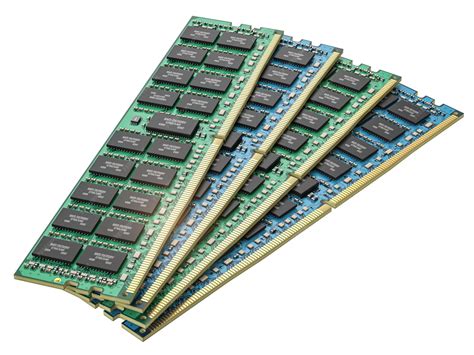
How to Test RAM for Errors & Fix Crashes (Easy Guide!)
tags: #ram #compatibility #issues