Choosing the right scanner for your Chromebook can be a frustrating experience, as not all scanners are fully compatible with ChromeOS. Modern ChromeOS notebooks have the capability to download and install Android apps from the Play Store, which should theoretically broaden the range of compatible devices. However, user experiences indicate that compatibility issues persist.
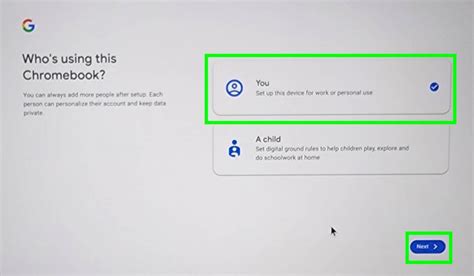
How To Scan & Print With Chromebook?
User Experiences with Epson Scanners
Several users have reported issues with Epson scanners, specifically when using the Epson DocumentScan Android app on Chromebooks. Here's a breakdown of their experiences:
- Inability to Detect Scanners: The Epson DocumentScan app on Google Pixelbook Chromebooks often fails to detect scanners such as the ES500W. This is despite the app working correctly on other Android devices like Google Pixel phones and Samsung Galaxy Tablets.
- Wireless Setup Issues: While some users have successfully set up scanners wirelessly with devices like Pixel 2 XL, Macbook Pro, and Mac Pro, the same success isn't always replicated with Chromebooks.
- USB Connection Limitations: The Android Epson DocumentScan app wasn't designed for USB connections to the scanner, making this option unavailable for Chromebook users.
Specific User Feedback
One user shared their frustrating experience after attempting to connect a scanner to their Chromebook for several hours. Despite a Google search indicating compatibility, the Chromebook never recognized the device, even with a direct ad hoc connection.
Another user, Chandler, mentioned they like the scanner and are keeping it despite it not working with ChromeOS yet. They also noted that the Windows version of the Epson app seems to be the most optimized, with MacOS coming in second. Scanned file sizes are similar between the two, but Android scans tend to be significantly larger. The OCR app on Windows also provides the smallest file sizes.
General Compatibility Considerations
When considering a scanner for your Chromebook, keep the following points in mind:
Read also: Using Canon Printers with Chromebooks
- Wi-Fi Feature: Ensure your Chromebook has Wi-Fi capabilities, as wireless connectivity is often the primary method for connecting scanners.
- App Availability: Check if the scanner manufacturer offers an Android app in the Play Store.
- Storage Space: Verify that your Chromebook has enough storage space to download and install the necessary apps.
Recommendations
Based on user feedback, it's clear that compatibility can be hit-or-miss. Before purchasing a scanner, consider the following recommendations:
- Check User Reviews: Look for reviews specifically mentioning Chromebook compatibility.
- Contact Manufacturer: Reach out to the scanner manufacturer to confirm compatibility with ChromeOS.
- Test Before Committing: If possible, test the scanner with a Chromebook before making a purchase.
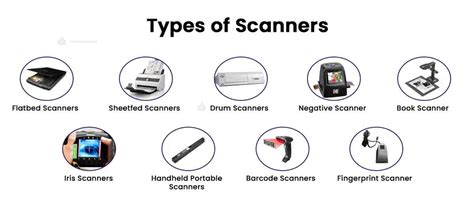
Summary of Compatibility Issues
Here's a summary of the compatibility issues encountered by users:
| Issue | Description |
|---|---|
| Scanner Not Detected | The Chromebook fails to recognize the scanner, even with a direct connection. |
| App Incompatibility | The Android app provided by the manufacturer doesn't function correctly on ChromeOS. |
| USB Connection Problems | The app doesn't support USB connections, limiting connectivity options. |
Read also: Detailed Review of Arccos Golf
Read also: Apps for Oura Ring Users
tags: #chromebook #compatible #scanners