Connecting an external monitor to your Macbook can significantly enhance your productivity and overall user experience. Many users are curious about the compatibility of Lenovo monitors with Mac devices.
This article addresses common connectivity issues and provides guidance on ensuring optimal performance.
Brightness and Display Quality
So, you're curious about how bright the display on the Lenovo ThinkVision M14t is? According to our research, it has a brightness level of 300 nits. With 300 nits, it performs well indoors, providing a clear and sharp image. However, if you're planning to use it in direct sunlight or somewhere really bright, it might not be strong enough to keep up. If you're often working outside or in very bright rooms, you might need to consider this brightness limitation more seriously, as bright conditions can overpower the display's capabilities.
USB-C and DisplayPort Support
Also, remember that to make full use of the M14t’s features, like the touchscreen, your device needs to support USB-C with DisplayPort 1.2 alt mode and USB Power Delivery 2.0. Just a heads up, we've found that some users had issues with certain devices, like some HP laptops, that don't meet these specs, which might limit what the monitor can do.
For Mac users, you might want to note that while the monitor will work for basic display purposes, the touch features could require extra software or might not be supported fully.
Read also: Choosing a Mac Mini Monitor
Resolution and Display Issues on macOS
A 24" FHD display is unfortunately not really ideal for macOS due to the very low PPI level - the Lenovo L24q would be much better (24" QHD).
Some users have reported that even after adjusting settings and rebooting, fonts and other elements may still appear blurry. Yes, you can enable smooth scaling but it will scale up to 1920x1080 HiDPI.
If you are experiencing such issues, consider switching to a monitor with a higher resolution for better clarity.
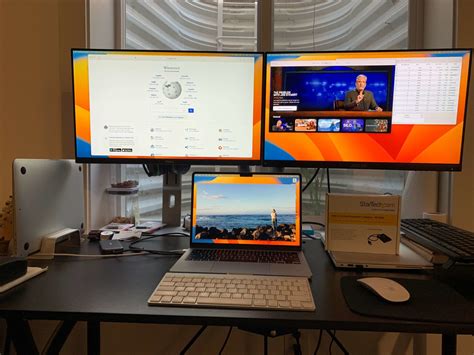
How to Connect an M1/M2 Apple Macbook Air to an External Monitor
Connectivity Problems and Solutions
Users have reported issues connecting Lenovo monitors to MacBooks, particularly with adapters and cables.
For instance, one user mentioned that their new ThinkVision T24i-20 Monitor was not getting connected to MacBook Air 2018 version through the USB C Digital AV multiport adaptor.
Read also: Detailed Review of Arccos Golf
Troubleshooting Steps:
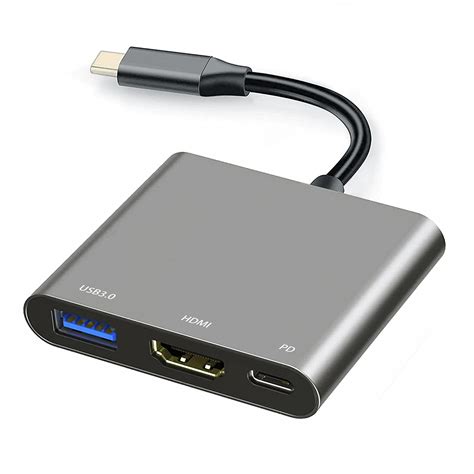
- Check the Adapter: Ensure that the USB-C Digital AV Multiport Adapter has an HDMI port. Different types of multiport adapters exist, and some may lack the necessary HDMI port.
- Verify Cables: The Lenovo cable from the monitor to the USB port may not work. The HDMI cable provided by Lenovo might be incompatible with the Apple Multiport Adaptor.
- Consider Alternative Connections: Explore other connection types. According to the Lenovo support site, your display also supports VGA.
- Purchase a Compatible Adapter: If the current adapter lacks an HDMI port, you may need to purchase a separate USB-C to HDMI adapter.
Real-World Scenarios and Solutions
Many users face connectivity issues when trying to connect their MacBooks to external monitors.
Here are some scenarios and potential solutions:
- Problem: Macbook Pro 13 inch not connecting to a new Dell display with an HDMI cable.
- Solution: Ensure that the HDMI cable is securely connected to both the MacBook and the monitor. Try using a different HDMI cable or adapter to rule out any hardware issues.
- Problem: External monitor not connecting to Macbook 13, M1 2020, even with an adapter.
- Solution: Verify that the adapter is compatible with the M1 MacBook. Some older adapters may not fully support the newer Mac models. Check for any driver updates or firmware updates for the adapter.
Summary of Lenovo Monitor and Mac Compatibility
To help you quickly assess the compatibility of Lenovo monitors with your Mac, here's a summary table:
| Feature | Considerations |
|---|---|
| Brightness | 300 nits is suitable for indoor use, but may be insufficient in bright sunlight. |
| USB-C Support | Requires USB-C with DisplayPort 1.2 alt mode and USB Power Delivery 2.0 for full functionality. |
| Resolution | 24" FHD displays may result in blurry fonts on macOS; QHD or higher is recommended. |
| Connectivity | Ensure compatibility of adapters and cables, and consider alternative connection types like VGA if available. |
Read also: Apps for Oura Ring Users