Welcome to the future of living, where your home responds to your needs, learns your habits, and simplifies your daily routine. This is the world of smart home automation, where the lights turn on for you and your thermostat knows you better than you know yourself. Maybe you've walked through one of these homes before, or you are currently setting up your own smart home system. With the Smart Life app and Smart Life compatible devices, you can transform your home into a smart home with only one app.
Imagine controlling your lights, thermostat, security cameras, and more-all from your smartphone. But what exactly is smart home automation? How does the Smart Life app work? In this comprehensive guide, we'll answer these questions and more. We'll show you how to set up your smart home with the Smart Life app, optimize it for energy savings and efficiency, and ensure your privacy and security.
Understanding Smart Home Automation
Smart home automation is about using technology to automate and enhance your home's functions, making it smart, efficient, and responsive to your needs. At its core, smart home automation involves connecting your home appliances and devices to a central system that can be controlled remotely, often through a smartphone app. The goal of smart home automation is to make your life easier, more comfortable, and more efficient.
The app is compatible with a wide range of devices, including smart lights, plugs, cameras, and more, from various manufacturers, making it a versatile choice for smart home enthusiasts.
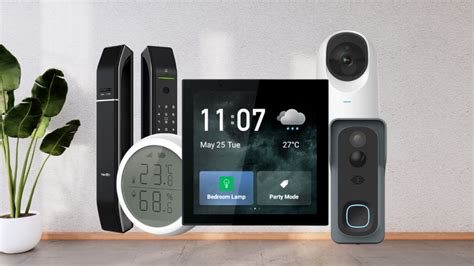
Setting Up Your Smart Home with Smart Life
Setting up your smart home with Smart Life is straightforward. Once you have the app, add your smart devices. The Smart Life app is user-friendly and guides you through the setup process for each device. If you are wondering if a device is compatible, open the Smart Life app and navigate to the "Add Device" section. The app provides a list of compatible device categories. If your device falls under one of these categories, it is likely compatible. Some brands also specifically mention their products' compatibility with the Smart Life app.
Read also: Detailed Review of Arccos Golf
With the Smart Life app, there are many ways to set up your home that go above and beyond a typical smart home. With added emphasis on energy-conscious usage, the app allows a user to dial in their devices to save money and the environment.
Optimizing for Energy Savings and Efficiency
Here are some ways to optimize your smart home for energy savings and efficiency:
- Smart thermostats: Install and connect smart thermostats to the Smart Life app.
- Smart lights: Replace traditional bulbs with smart LED bulbs.
- Schedules: Set schedules for your devices to operate only when needed.
- Custom scenes: Create scenes that combine multiple actions.
- Energy Monitoring: Some smart plugs and devices have built-in energy monitoring features.
Troubleshooting Common Issues
Like any technology, Smart Life devices can encounter issues. Most problems can be resolved with simple troubleshooting steps.
- Ensure your Wi-Fi network is functioning properly. Make sure the device is within range of your Wi-Fi router.
- Make sure the Smart Life app is updated to the latest version. Close the app completely and reopen it to resolve minor glitches. Go to your device settings, find the Smart Life app, and clear its cache.
- Check your router settings to ensure it’s not blocking the device. Follow the manufacturer’s instructions to reset.
By following these steps and maintaining a methodical approach to troubleshooting, you can resolve the most common issues and ensure your smart home system is running smoothly.
How to use the Smart Life App
Enhancing Your Smart Home with IFTTT
Looking for even more smart home capability? Look no further than IFTTT, (If This Then That), our free web-based service and mobile app designed to boost productivity by automating tasks. The basic idea behind IFTTT is to create "applets" or sets of instructions that trigger when certain conditions are met. This can be turning on the lights automatically when you enter your house, for example.
Read also: Apps for Oura Ring Users
Founded in 2011, IFTTT has been used by over 25 million individuals to automate both business and home tasks, saving time and increasing efficiency. It's commonly used to connect disparate services and systems, making all products and services work well together in a way that instills user confidence.
Tuya Device Configuration in Home Assistant
Here's some information about configuring Tuya devices (which are often used with Smart Life) in Home Assistant:
Hubs are currently supported, but with limitations. If your device connects via a hub (eg. Sub device id: the actual device you want to control's node_id of the hub they are attached to, and the node_id of the sub-device.
When attempting to add the device, if it is not supported, you will either get a message saying the device cannot be recognised at all, or you will be offered a list of devices that are partial matches. The list presented is filtered to exclude devices that definitely do not match among the 1000+ supported devices.
If you have signed up for iot.tuya.com, you should have access to the API Explorer under "Cloud".
Read also: What is S3-Compatible Storage?
When using the cloud assisted config, the device id and local key will be pre-filled from the cloud, and the IP address will also be filled if local discovery is not blocked by other integrations or a complex network setup.
Protocol Version: (string or float) (Required) Valid options are "auto", 3.1, 3.2, 3.3, 3.4, 3.5, 3.22. If you aren't sure, choose "auto", but some 3.2, 3.22 and maybe 3.4 devices may be misdetected as 3.3 (or vice-versa), so if your device does not seem to respond to commands reliably, try selecting between those protocol versions. Protocol 3.22 is a special case, that enables tinytuya's "device22" detection with protocol 3.3.
tags: #smartlife #app #compatible #devices